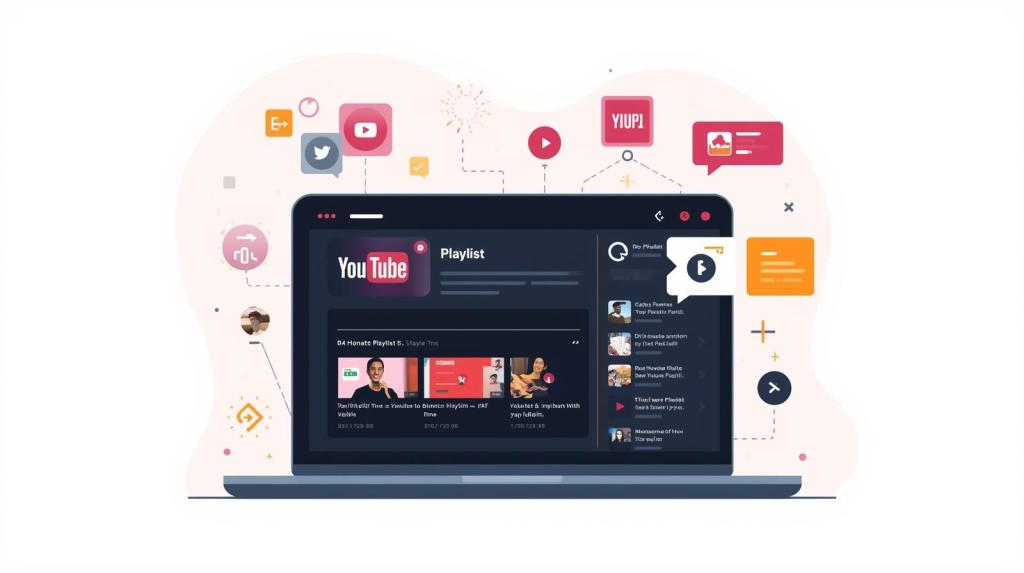
Video content is one of the most powerful ways to engage and educate your audience. Whether you run a business website, a personal blog, or an eCommerce store, embedding YouTube playlist videos can dramatically boost visitor engagement and time-on-site.
But embedding individual videos one by one can be frustrating and messy. That’s where YouTube Playlists come in.
A YouTube playlist lets you showcase multiple related videos—tutorials, product demos, travel vlogs, testimonials, reviews—all in a single, clean section on your website.
In this complete beginner-friendly guide, you’ll learn:
- What a YouTube playlist embed is
- The benefits of embedding playlists
- How to generate the official YouTube embed code
- How to embed playlists on WordPress, HTML, Shopify & more
- The easiest no-code method using Tagembed
- Best practices & troubleshooting tips
Let’s dive in!
What Is a YouTube Playlist Embed?
A YouTube playlist embed is a small snippet of HTML (an iframe) that allows you to display an entire playlist on your website. Instead of embedding videos one-by-one, the playlist automatically shows all videos in a scrollable list or carousel-style viewer.
YouTube Video vs. Playlist – What’s the Difference?
| Feature | Single Video Embed | Playlist Embed |
|---|---|---|
| Shows multiple videos | ❌ No | ✔ Yes |
| Auto-updates when new videos are added | ❌ No | ✔ Yes |
| Saves website space | ❌ No | ✔ Yes |
| Improves watch-session time | ❌ No | ✔ Yes |
A playlist embed is ideal when you want to present a series of videos on one topic, like:
- Product tutorials
- Brand stories
- Testimonials
- Educational lessons
- Travel itineraries
- Marketing tips
Benefits of Embedding a YouTube Playlist on Your Website
Embedding a YouTube playlist has several advantages for your website, YouTube channel, and business.
1. Boosts Visitor Engagement
People love watching videos. Displaying multiple related videos keeps visitors engaged without overwhelming them.
2. Increases Page Time
More videos = more time spent on your site. Google sees increased dwell time as a positive ranking signal.
3. Helps Grow Your YouTube Channel
Because viewers watch directly from your site, your YouTube watch-time increases—helping your videos rank better.
4. Keeps Your Website Clean
Instead of embedding 10 videos separately, one playlist embed does the job.
5. Content Auto-Updates
Whenever you add new videos to your playlist on YouTube, they automatically appear on your website without extra effort.
6. Enhances User Experience
Visitors can scroll, choose videos, and watch without leaving your site.
How to Get the YouTube Playlist Embed Code
YouTube provides a direct embed option for playlists. Here’s how to get the code:
Step-by-Step Guide
- Go to YouTube.com
- Open the playlist you want to embed
- Click the Share button
- Select Embed
- A popup will show a preview and an iframe code
- Click Copy
That’s it—you now have the official YouTube embed code.
How to Embed a YouTube Playlist on Different Platforms
1. Embed on an HTML Website
If you’re using a custom-coded site, this is the simplest method.
Steps:
- Open your website’s HTML editor
- Paste the iframe code where you want the playlist to appear
- Save and publish
Make the Playlist Responsive (Recommended)
Add this simple CSS:
<style>
.embed-container{
  position:relative;
  padding-bottom:56.25%;
  height:0;
  overflow:hidden;
  max-width:100%;
}
.embed-container iframe{
  position:absolute;
  top:0;
  left:0;
  width:100%;
  height:100%;
}
</style>
Wrap the iframe like this:
<div class="embed-container">
  <iframe ...your code...></iframe>
</div>
Now your playlist will look perfect on both desktop and mobile.
2. Embed YouTube Playlist on WordPress
You can embed with or without a plugin.
Method A: Gutenberg Editor
- Open your post/page
- Add Custom HTML block
- Paste the iframe code
- Update
Method B: Classic Editor
- Switch to Text Mode
- Paste the iframe directly
- Save
Method C: Using a Plugin
Plugins allow more customization, but they add extra load. A cleaner alternative is using Tagembed, which I’ll cover below.
3. Embed on Wix, Squarespace, Webflow & Shopify
Wix
- Go to the Wix Editor
- Add → Embed → HTML iFrame
- Paste the code
Squarespace
- Add a Code Block
- Paste the iframe
- Apply
Shopify
- Open the theme customizer
- Add a Custom HTML block
- Paste the code
Webflow
- Drag the Embed component
- Paste the YouTube playlist iframe
Almost all website builders support iframe embeds, so the process is similar everywhere.
Easiest Method: Embed YouTube Playlist Using Tagembed (No Coding Needed)
If you want a professional-looking YouTube playlist widget that updates automatically, loads fast, and matches your website design, then Tagembed is the easiest solution.
What Is Tagembed?
Tagembed is a social media aggregator tool that helps you embed YouTube playlists on any website—without touching code.
It gives you:
- Fully customizable layouts
- Auto-sync when new videos are added
- Responsive design
- Faster load than manual iframe
- Lightweight widget that doesn’t slow your website
- Works with WordPress, HTML, Shopify, Wix, Squarespace & more
How to Embed a YouTube Playlist Using Tagembed
Here’s the simple 5-step process:
Step 1: Create a Free Tagembed Account
Go to Tagembed and sign up for a free account.
Step 2: Add YouTube as Your Source
Choose YouTube → select Playlist → paste your playlist link.
Step 3: Customize the Playlist Widget
Choose from layouts like:
- Grid
- Carousel
- Slider
- Sidebar
Customize colors, fonts, card style, and size.
Step 4: Copy the Embed Code
Tagembed will generate a lightweight widget embed code.
Step 5: Paste it Into Your Website
Use it on WordPress, HTML, Shopify, Wix, or any CMS.
That’s it—you’re live!
Why Tagembed Is Better Than a Plain YouTube Embed
| Feature | YouTube iframe | Tagembed |
|---|---|---|
| Responsive | ✔ | ✔✔ Fully responsive |
| Auto-update | ✔ | ✔✔ Faster syncing |
| Lightweight | ❌ Heavy | ✔ Optimized widget |
| Design customization | ❌ No | ✔ Yes |
| Layout options | ❌ No | ✔ Many layouts |
| Works on all builders | Limited | ✔ Universal |
| Moderation | ❌ No | ✔ Yes |
| Analytics | ❌ No | ✔ Yes |
If you want professional embedding, Tagembed is clearly the smarter option.
Best Practices for Embedding YouTube Playlists
To get the most results, follow these tips:
1. Pick a Focused Playlist
Don’t mix random videos. Keep themes consistent.
2. Place Embed Above-the-Fold
Visibility = more clicks = more watch time.
3. Use Attractive Thumbnails
Good thumbnails increase video plays dramatically.
4. Keep Video Titles Clear & Search-Friendly
Optimize your YouTube titles for SEO and clarity.
5. Make Sure Your Embed Is Mobile-Friendly
Over 60% of video views happen on mobile.
6. Use a Fast Loading Player
Iframe embeds can be slow—Tagembed solves this.
Common Problems & How to Fix Them
1. Playlist Not Loading
- Check if the playlist is public
- Ensure code is copied correctly
2. Black Screen Issue
- Happens when videos are private
- Make sure all playlist videos are viewable
3. Responsive Issues
- Use responsive CSS or Tagembed widget
4. WordPress Not Showing the Embed
- Switch to HTML/Text mode
- Some page builders block iframes—use Tagembed instead
5. Website Speed Issues
- Too many embeds slow loading
- Solution: Tagembed uses optimized CDN + lazy loading
Creative Ways to Use YouTube Playlists
Here are ideas to use playlists strategically:
✔ Product tutorials
Teach customers how to use your product.
✔ Customer testimonial playlist
Build instant trust.
✔ Travel series
Perfect for travel bloggers and agencies.
✔ Educational course playlist
Share lessons in a structured format.
✔ Brand story series
Showcase your journey and behind-the-scenes.
✔ Event highlights
Great for conferences & workshops.
Conclusion
Embedding a YouTube playlist on your website is one of the easiest ways to boost engagement, increase watch time, and improve user experience—all without cluttering your pages.
You learned:
- What playlist embedding is
- Why it benefits your website
- How to embed using YouTube’s official iframe code
- How to add it on HTML, WordPress, Shopify & more
- The easiest no-code method using Tagembed
- Best practices & troubleshooting
If you want a fast, responsive, customizable YouTube playlist widget that updates automatically, Tagembed is the best solution for beginners and professionals alike.




 YouTube Marketing Blog
Leave a comment